At home, on your schedule
No appointment or trip to a photo studio. Start with a photo from your phone.
 RadiantSnaps
 Google rating
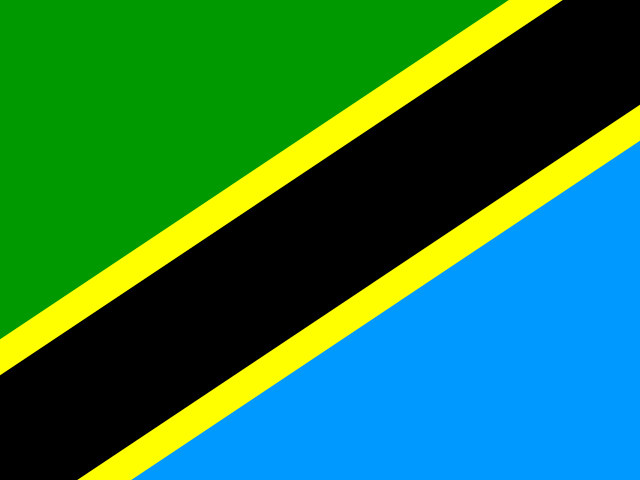
Make 35×45 mm Tanzania passport photos online in minutes. Crop to the exact format, use a plain white background and check the result against the official rules before you submit.
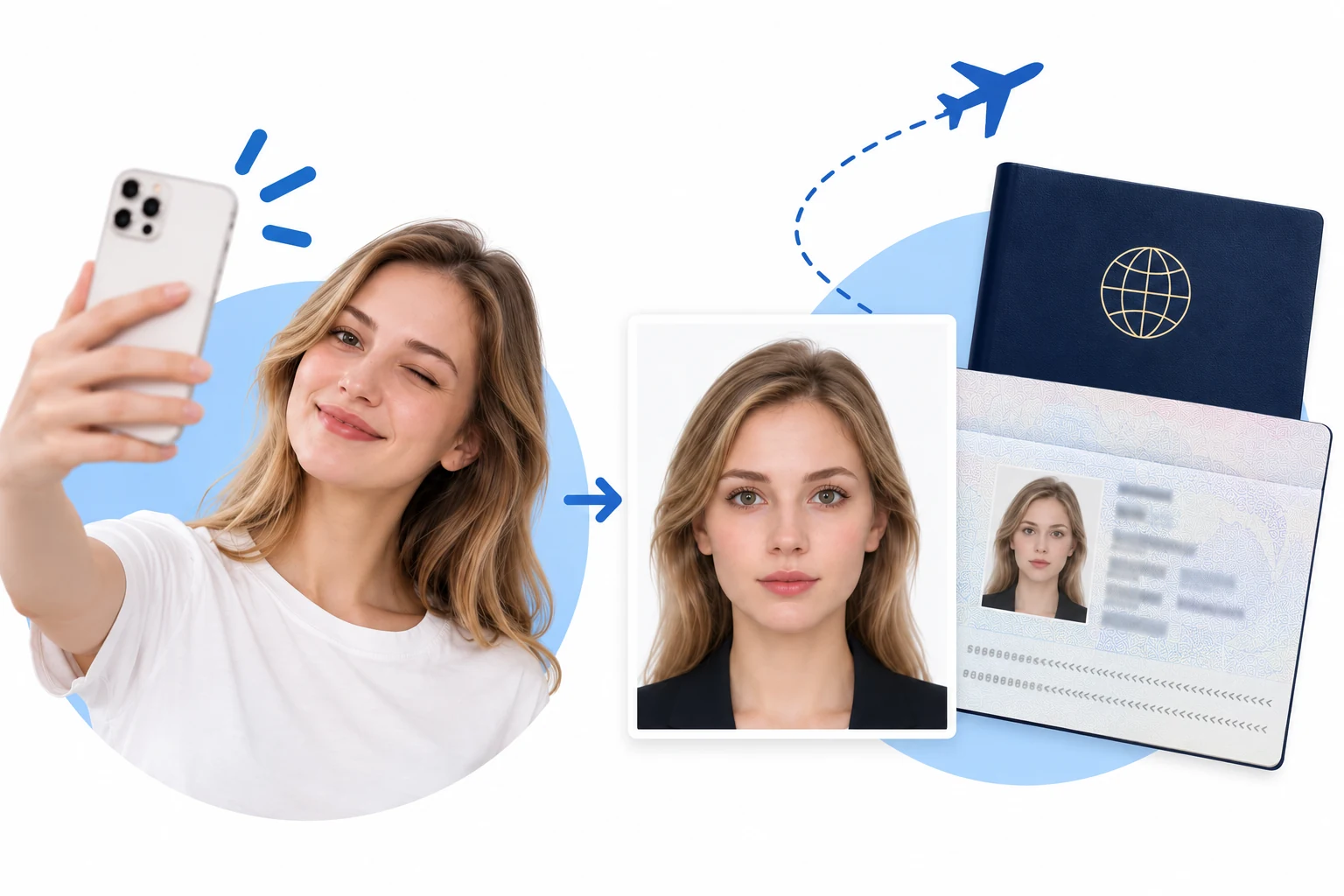
 Tanzania passport · 35×45 mmReady in 3 minutesPhoto privacy & security
A Tanzanian passport photo is 35 × 45 mm on a plain white background. Our size dictionary records this as a secondary entry, so treat the measurements as a working reference and confirm them with the Immigration Department before you print.
Sources checked 31 October 2026: size dictionary entry tz-passport — confidence secondary, no issuing-authority page confirmed. No official quotation is reproduced here for that reason.
Create your online passport photo in 3 minutes.
One photo. The right size. A clean background.

Start with a clear portrait
Upload a recent, front-facing photo. Keep your full head and shoulders visible.

Automatic size, positioning & background
Choose your document. The system automatically adjusts photo dimensions, subject positioning and background to the selected format.
Check, then save or print
The system checks your photo against the selected application requirements. Once it passes, save or print it. Final acceptance rests with the issuing authority.
A simpler way to prepare your photo, wherever your next trip takes you.
No appointment or trip to a photo studio. Start with a photo from your phone.
Cropping and background removal preserve your original facial features.
Review head height, eye position and photo dimensions before downloading.
Photo processing runs on your device. Your original photo is not uploaded.
Photo privacy & security ↗The right size is only the beginning. These issues may need a new photo, not another crop.
Cropping cannot restore missing detail. Start again with a sharp, recent, unfiltered portrait.
Retake the photo with room around your head and shoulders. Do not generate missing body parts.
Face soft, even light. Follow your authority’s rules for glasses, head coverings and expression.
Printed and online applications can use different specifications. Check the document, dimensions, pixels and file format.
“Honestly, this was much easier than I expected. I took the photo at home, adjusted it using the guides, and had everything ready in just a few minutes.”
“The size and positioning guides were really helpful. I could see what needed fixing right away instead of guessing whether the photo would meet the requirements.”
“I was a little worried the editing would make the photo look unnatural, but it still looks completely like me. It just fixed the framing and dimensions, which is exactly what I wanted.”
“Saved me a trip to a photo studio. I took a few pictures on my phone, picked the best one, and got the passport format sorted at home.”
“Simple and straightforward. The final check made it much easier to confirm the crop, head position, and spacing before I saved the photo.”
“I’ve tried other passport photo tools before and they felt way more complicated. This one was quick, clear, and didn’t over-edit my face. The finished photo still looked natural.”